その他
垂直同期の有効化/無効化
デフォルトでは、vsyncは有効になっており、最大FPSはディスプレイのリフレッシュレートに制限されています。 vsyncを無効にすることで、最大FPSの制限を解除できます。
スピンメソッド
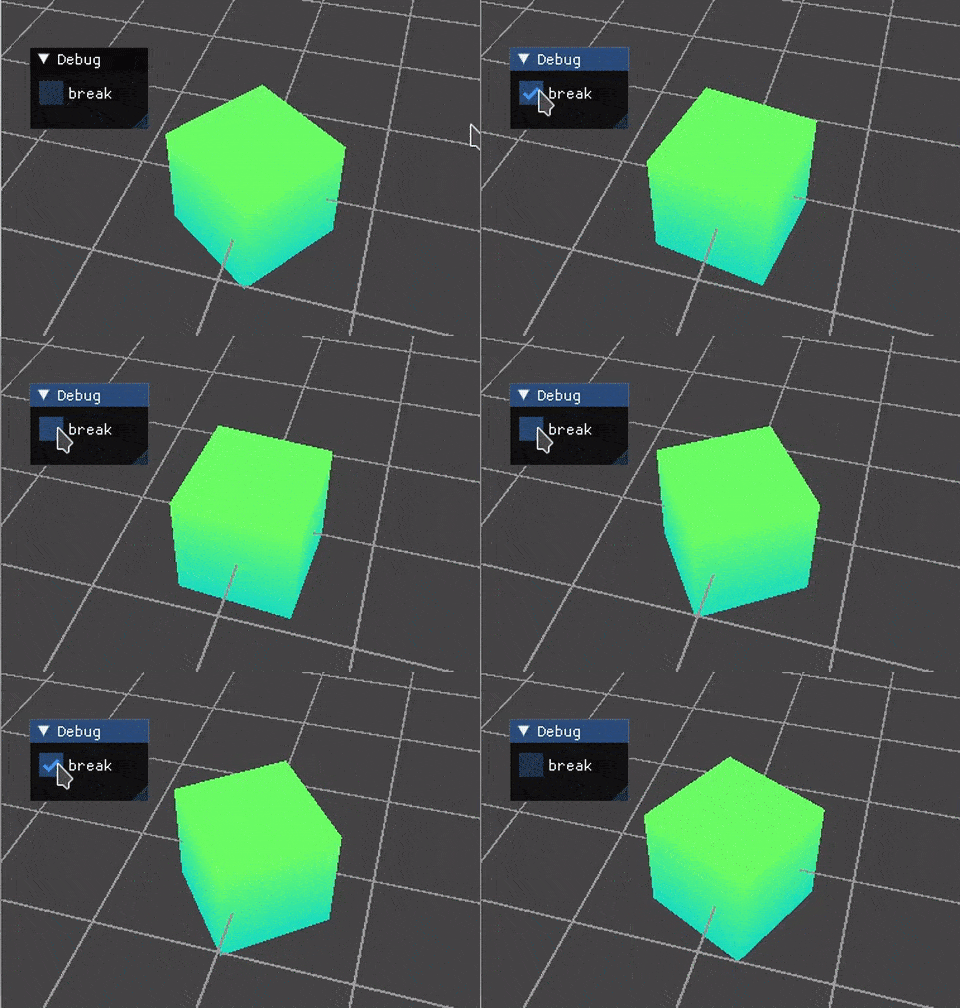
spin_once() と spin() に加えて、デバッグに便利な2つのスピンメソッド spin_until_click() と toggle_spin_once() があります。
spin_until_click() は、ステップ実行デバッグのために break ボタンがクリックされるまでビューワをスピンさせます。
double angle = 0.0;
while (viewer->spin_until_click()) {
  viewer->update_drawable("cube", glk::Primitives::cube(), guik::Rainbow().rotate(angle, {0.0f, 0.0f, 1.0f}));
  angle += 0.1;
}

toggle_spin_once() はビューワをスピンさせ、break チェックボックスがチェックされている間は停止します。
double angle = 0.0;
while(viewer->toggle_spin_once()) {
  viewer->update_drawable("cube", glk::Primitives::cube(), guik::Rainbow().rotate(angle, {0.0f, 0.0f, 1.0f}));
  angle += 0.01;
}
背景色/画像の設定
// 背景色の変更
viewer->set_clear_color({0.2f, 0.2f, 0.2f, 1.0f});

// 背景画像の設定
std::shared_ptr<glk::Texture> texture = ...;
viewer->set_bg_texture(texture);
テキスト出力
3Dオブジェクトの削除
// 指定された名前のオブジェクトを削除
viewer->remove_drawable("drawable_name");

// 正規表現パターンに一致する名前のオブジェクトを削除
viewer->remove_drawable(std::regex("drawable_.+"));

// すべてのオブジェクトを削除
viewer->clear_drawables();
3Dオブジェクトの描画フィルタ
オブジェクトの名前に基づいて描画する/しないを制御するフィルタを登録できます。
viewer->register_drawable_filter("filter", [](const std::string& drawable_name) {
  bool do_rendering = true;

  if (drawable_name == "drawable_to_be_filtered") {
    do_rendering = false;
  }

  return do_rendering;
});

// 描画可能オブジェクトフィルタは0で上書きすることで削除できます
viewer->register_drawable_filter("filter", 0);
Rainbowスキームのカラーリング設定の変更
glk::COLORMAP colormap = glk::COLORMAP::AUTUMN;   // カラーマップタイプ
Eigen::Vector2f range(-3.0f, 5.0f);               // カラーリング範囲
Eigen::Vector3f axis(1.0f, 0.0f, 0.0f);           // カラーリング軸

viewer->set_colormap(colormap);
viewer->set_rainbow_range(range);
viewer->set_rainbow_axis(axis);
カラーマップ
#include <glk/colormap.hpp>

// カラーマップ値の取得 (整数版: 値の範囲 = [0, 255])
Eigen::Vector4i color = colormap(glk::COLORMAP::TURBO, 128);

// カラーマップ値の取得 (浮動小数点版: 値の範囲 = [0.0, 1.0])
Eigen::Vector4f colorf = colormapf(glk::COLORMAP::TURBO, 0.5f);

// カラーマップから色を均等にサンプリングしてカテゴリカリカラーを取得
// 色は "num_categories" カウントごとにループする
int count = 1;
int num_categories = 16;
Eigen::Vector4i cat_color = colormap_categorical(glk::COLORMAP::TURBO, count, num_categories);

// 浮動小数点版
Eigen::Vector4f cat_colorf = colormap_categoricalf(glk::COLORMAP::TURBO, count, num_categories);
サブビューワ
auto sub_viewer1 = viewer->sub_viewer("sub1");
sub_viewer1->update_drawable("cube", glk::Primitives::cube(), guik::Rainbow());

auto sub_viewer2 = viewer->sub_viewer("sub2");
sub_viewer2->update_drawable("sphere", glk::Primitives::sphere(), guik::Rainbow());

デフォルトのカメラ操作をサブビューワと共有
auto camera_control = viewer->get_camera_control();
sub_viewer1->set_camera_control(camera_control);
sub_viewer2->set_camera_control(camera_control);

スクリーンショットの撮影
シンプルだが低速な画面キャプチャメソッド (1~30 FPS):
// 8ビットRGBAピクセルデータ
std::vector<unsigned char> color_pixels = viewer->read_color_buffer();
// float深度データ
std::vector<float> depth_pixels = viewer->read_depth_buffer();
ピクセルバッファオブジェクトを使用した効率的な非同期画面データ転送 (~500FPS) については、src/example/ext_light_viewer_capture.cpp を参照してください。
ファイルダイアログ (portable-file-dialogs)
#include <portable-file-dialogs.h>
#include <guik/recent_files.hpp>

guik::RecentFiles recent_files("input_directory");
const std::string path = pfd::select_folder("Select input directory", recent_files.most_recent()).result();
if (!path.empty()) {
  recent_files.push(path);
}

ロギング (spdlog協調)
#include <spdlog/spdlog.h>
#include <spdlog/sinks/ringbuffer_sink.h>

#include <guik/spdlog_sink.hpp>
#include <guik/viewer/light_viewer.hpp>


// デフォルトのspdlogロガー用にリングバッファシンクを設定
const int ringbuffer_size = 100;
auto ringbuffer_sink = std::make_shared<spdlog::sinks::ringbuffer_sink_mt>(ringbuffer_size);

auto logger = spdlog::default_logger();
logger->sinks().emplace_back(ringbuffer_sink);
logger->set_level(spdlog::level::trace);

spdlog::trace("trace");
spdlog::debug("debug");
spdlog::info("info");
spdlog::warn("warning");
spdlog::error("error");


// リングバッファの内容を表示するロガーUIを作成
const double bg_alpha = 0.7;
viewer->register_ui_callback("logging", guik::create_logger_ui(ringbuffer_sink, bg_alpha));
画像と3Dモデルの入出力
PNG
#include <glk/io/png_io.hpp>

// PNG画像の読み込み
// ピクセルデータは8ビットRGBA形式で保存されます
int width, height;
std::vector<unsigned char> pixels;
glk::load_png("image.png", width, height, pixels);

// 画像をPNG画像として保存
// ピクセルデータは8ビットRGBAである必要があります
glk::save_png("image.png", width, height, pixels);
JPEG
#include <glk/io/jpeg_io.hpp>

// JPEG画像の読み込み
// ピクセルデータは8ビットRGBA形式で保存されます
int width, height;
std::vector<unsigned char> pixels;
glk::load_jpeg("image.png", width, height, pixels);

// 画像をJPEG画像として保存
// ピクセルデータは8ビットRGBAである必要があります
int quality = 100;
glk::save_jpeg("image.png", width, height, pixels, quality);
PLY
#include <glk/io/ply_io.hpp>

// PLYモデルの読み込み
auto ply = glk::load_ply("model.ply");

// ply->vertices    : std::vector<Eigen::Vector3f>
// ply->colors      : std::vector<Eigen::Vector4f>
// ply->normals     : std::vector<Eigen::Vector3f>
// ply->intensities : std::vector<float>
// ply->indices     : std::vector<int>

// PLYデータの保存
glk::save_ply_binary("model.ply", *ply);

// 点群をPLY形式で保存
std::vector<Eigen::Vector3f> points
glk::save_ply_binary("model.ply", points.data(), points.size());
点群部分レンダリング(累積レンダリング)
部分レンダリングモードを使用することで、大規模な静的点群のレンダリングコストを削減できます。 このモードでは、静的点群の一部のみが毎フレームレンダリングされ、時間の経過とともにレンダリング結果が蓄積されます。 これによりちらつきが発生しますが、レンダリング速度を大幅に向上させることができます。
使用方法:
1. 部分レンダリングモードを有効にします。
viewer->enable_partial_rendering().
2. 点群バッファを作成し、位置フレームごとにレンダリングする点の数を設定します。
auto cloud_buffer = std::make_shared<glk::PointCloudBuffer>(...);
int points_rendering_budget = 512;
cloud_buffer->enable_partial_rendering(points_rendering_budget);
ext_light_viewer_partial_rendering.cpp も参照してください。
Note
この機能はNVIDIA以外のGPUではうまく動作しない可能性があります。
ビューワメニュー
"Ctrl+M" を押すと、隠しメニューバーが表示されます。メニューバーを介して、以下のことができます:
- レインボーカラーマップ、カラーリング軸、範囲の変更
- 情報ウィンドウの表示 (FPS/CPU&GPU使用率)
- vsyncの有効化/無効化
- XYグリッドの有効化/無効化
- 描画可能オブジェクトフィルタとエディタの表示
- カメラ設定の保存/読み込み
- ポイントピッキングによるオブジェクトの3D位置の取得

キーボードショートカット
一般
| キー | 説明 |
|---|---|
| Ctrl + M | ビューワメニューの表示 |
| Ctrl + J | スクリーンショットの保存 |
| Ctrl + F | すべてのプロットをデータに合わせる |
| Ctrl + MINUX / PLUS | 点スケールの増加/減少 |
カメラ操作
| キー | 説明 |
|---|---|
| Ctrl + 矢印キー | カメラ移動 |
| Ctrl + Page UP / Down | ズームイン/アウト |
| Ctrl + Home / End | 移動速度の増加/減少 (永続的) |
| Shift | 移動速度の増加 (押している間) |